

Key Takeaways
- Turning off subtitles on Roku can enhance your viewing experience by reducing distractions and screen clutter.
- You can disable subtitles through the Roku Settings menu or directly while watching content using the asterisk (*) button on the remote.
- Certain apps like Netflix and Hulu may require disabling subtitles within the app’s settings for specific shows or movies.
- Troubleshoot persistent subtitle issues by restarting your Roku device, checking app settings, or updating the system software.
- Regular maintenance, like keeping your Roku updated and customizing accessibility settings, ensures a smoother and more personalized experience.
Subtitles can be super helpful when you’re watching a show in a noisy room or trying to catch every word of a fast-talking character. But sometimes, they can feel distracting or unnecessary, especially if you just want to enjoy the visuals without text cluttering the screen. I’ve been there, wondering how to turn them off without interrupting my binge session.
If you’re using a Roku device, tweaking subtitle settings might seem a little tricky at first, but it’s actually pretty simple once you know where to look. Whether subtitles popped up unexpectedly or you’re just ready to turn them off for good, I’ll walk you through the steps to make it quick and painless.
Understanding Subtitles On Roku
Subtitles on Roku provide text-based transcription for spoken dialogue and important audio cues in shows or movies. These captions enhance accessibility for people with hearing impairments or help in understanding content in different languages. They’re often customizable, allowing users to adjust font size, color, and style for a personalized viewing experience.
Roku devices support closed captions for most apps, including Netflix, Hulu, and Prime Video. However, the availability of subtitles depends on the app and content being streamed. Some channels enable subtitles by default, while others require manual activation. Knowing their behavior helps you manage and control subtitle settings effectively.
Why Turn Off Subtitles On Roku?

Some viewers find subtitles distracting or unnecessary, especially when focusing on visuals or listening to clear audio. Turning off subtitles can help create a cleaner, more immersive viewing experience.
Common Reasons For Disabling Subtitles
- Distraction from visuals: Subtitles can draw attention away from the action on screen, especially during visually intense scenes. For example, action sequences or animated visuals may feel less engaging when text competes for attention.
- Clear audio quality: If dialogue and background sounds are distinct, subtitles might feel redundant. In quiet environments, relying on the audio alone may feel more natural.
- Content language compatibility: Fluent speakers of the content’s language might not need linguistic support. Subtitles in the same language as the audio may even clutter the display unnecessarily.
Benefits Of Customizing Your Viewing Experience
- Enhanced immersion: Turning off subtitles can make stories feel more lifelike since the focus stays on characters and their interactions. For example, watching a drama without text interruptions could help better capture emotional nuances.
- Personalized control: Tailoring the subtitle settings ensures the viewing environment matches your preference. If you’re switching between shows requiring subtitles and those that don’t, adjusting these settings enhances convenience.
- Reduced screen clutter: Removing text from the screen can create a more streamlined appearance, especially on smaller displays like bedroom TVs or portable Roku devices.
Step-By-Step Guide: How To Turn Off Subtitles On Roku
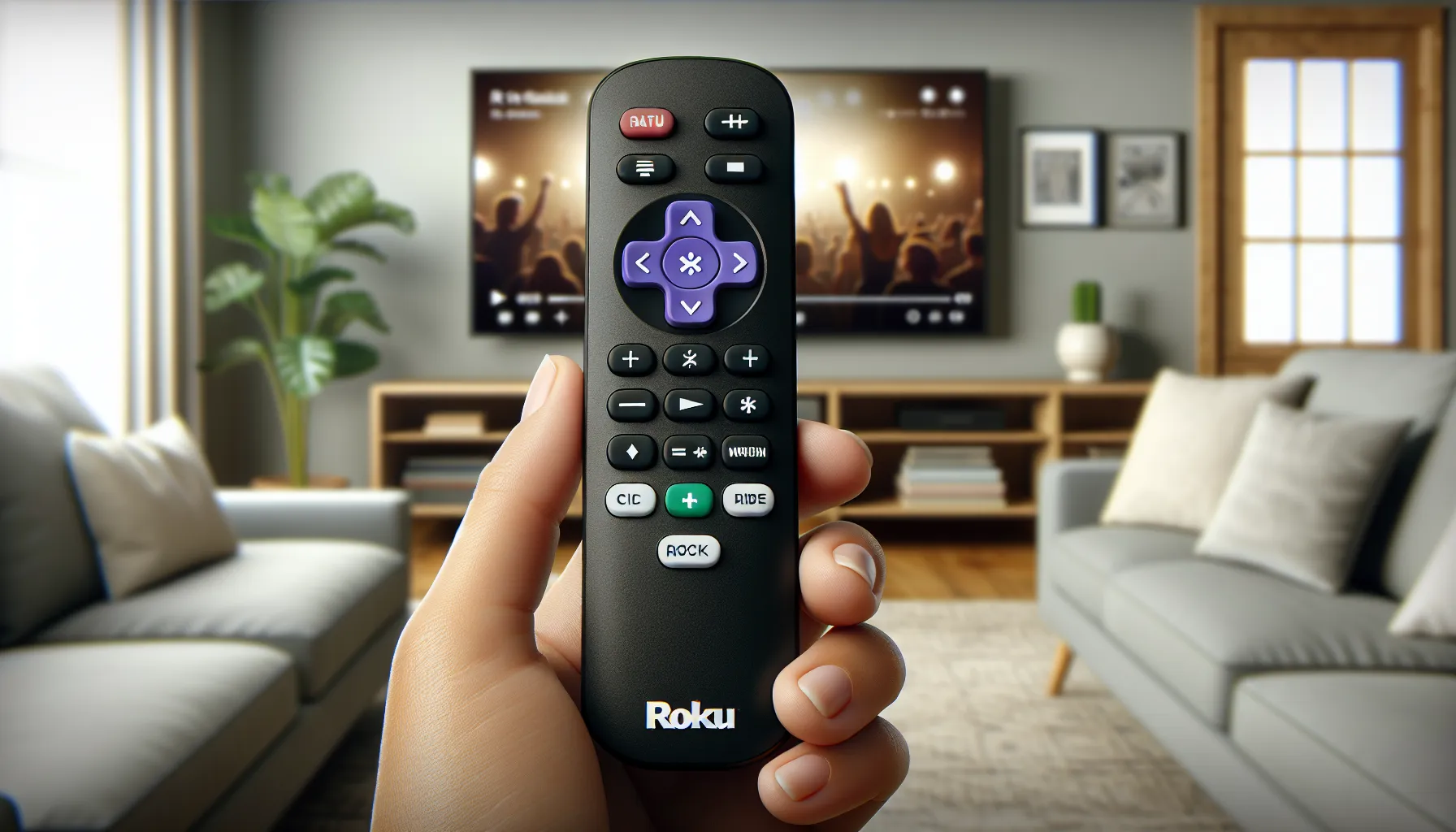
Disabling subtitles on Roku is simple. Follow these steps to ensure your viewing experience matches your preferences.
Accessing Roku Settings
Start at the Roku Home Screen. Navigate to the Settings menu by scrolling up or down on your remote. Select Accessibility or Captions. If you see Captions Mode, choose it to manage subtitle preferences. For older Roku devices, look under Settings > Captions instead.
Turning Off Subtitles While Watching A Show Or Movie
While watching, press the asterisk (*) button on your Roku remote. The Options menu will appear. Scroll to Subtitles or Captions Mode, then select Off to disable subtitles instantly. Exit the menu to continue watching without interruptions.
Adjusting Subtitles For Specific Channels
Certain apps, like Netflix and Hulu, have separate subtitle controls. Open the app, go to the playback or settings menu, and locate Subtitle Options. Switch subtitles off within the app. This ensures subtitles stay disabled for that channel’s content.
Troubleshooting Subtitle Issues
Sometimes subtitles don’t turn off even after adjusting the settings. This can happen due to system glitches or app-specific configurations.
What To Do If Subtitles Won’t Turn Off
I recommend starting by restarting your Roku device. Go to Settings > System > System restart > Restart, then wait for the device to reboot. If subtitles persist, check the app settings for the specific platform you’re using. Apps like Netflix or Prime Video often have separate subtitle controls, so turn off captions there as well.
If the issue continues, try resetting the Accessibility or Captions settings to default. Navigate to Settings > Accessibility > Captions mode, then choose “Off.” This step ensures that any custom settings don’t interfere with subtitle preferences.
Checking For System Updates On Roku
An outdated Roku system can cause settings, including subtitles, to function improperly. I check for updates regularly to avoid such issues. On your Roku, go to Settings > System > System update, then select Check now. If an update is available, download and install it immediately.
After updating, revisit the subtitle settings to confirm they’ve been disabled. Keeping the system updated often prevents recurring subtitle-related glitches.
Tips For Better Roku Experience
- Customize Picture Settings
I adjust the display type and brightness to match my TV and viewing conditions. Using the Roku settings menu, I ensure the picture fits the screen and refine it for better color and clarity.
- Enhance Audio Output
I connect external speakers or soundbars to improve sound quality. Roku’s audio settings help me balance volume and enable features like night mode when I watch late at night.
- Use Voice Commands
I take full advantage of a Roku remote with voice capabilities. By speaking into the remote, I search for titles, change settings, or open apps without navigating menus.
- Organize App Layout
I keep my favorite streaming services easily accessible by rearranging channel shortcuts on the home screen. This speeds up access to apps like Netflix or Hulu.
- Enable Private Listening
I connect headphones to the Roku remote or the mobile app for quieter viewing. This feature is perfect when I don’t want to disturb others.
- Keep Roku Updated
I regularly check for system and app updates to avoid performance issues. The System Update option in Settings ensures I’m using the latest version for optimal functionality.
- Download the Roku App
I use the Roku mobile app as an alternative remote or for additional features, like screen mirroring and private listening. The app simplifies device control when the remote isn’t nearby.
- Explore Accessibility Options
I tailor options like closed caption styling and screen reader functions for better usability. These features help me customize my viewing based on personal needs.
- Adjust Bandwidth Settings
I reduce streaming quality in Roku’s settings to limit data usage on slower internet or save on bandwidth costs. It ensures smoother streaming without constant buffering.
- Reboot Occasionally
I restart the Roku device if I encounter lag or app errors. A quick system restart from the menu or by unplugging ensures smoother performance.
Conclusion
Managing subtitles on Roku doesn’t have to be a hassle. Whether you’re aiming for a distraction-free experience or simply prefer watching without text on the screen, knowing how to adjust your settings makes all the difference. With just a few clicks, you can create a viewing setup that feels right for you.
Don’t forget to explore other customization options on your Roku to make the most of your streaming sessions. A little tweaking here and there can turn your device into the ultimate entertainment hub. Happy streaming!
Frequently Asked Questions
What are Roku subtitles and how do they work?
Roku subtitles, also known as closed captions, provide text-based transcriptions of spoken dialogue and important audio cues while watching shows. They enhance accessibility for individuals with hearing impairments or those needing language support. Roku supports subtitles for most apps like Netflix, Hulu, and Prime Video, although the availability may vary by app and content.
How can I turn off subtitles on Roku?
To turn off subtitles, go to the Roku Home Screen, navigate to Settings > Accessibility or Captions, and select “Off” for captions. Alternatively, press the asterisk (*) button on your remote while watching a show and adjust the subtitle settings.
Why won’t subtitles turn off even after changing the settings?
This issue could be due to app-specific controls or system glitches. Restart your Roku device and check individual app settings (e.g., Netflix or Prime Video). If the problem persists, reset the Accessibility or Captions settings to default or update your Roku system.
Why do subtitles appear unexpectedly on Roku?
Subtitles may appear if a specific app enabled them by default or someone accidentally activated them using the Roku remote. Certain apps also auto-enable subtitles based on viewing preferences or accessibility settings.
How can I disable subtitles for specific apps on Roku?
Each app typically has its own subtitle controls. Open the app (e.g., Netflix or Hulu), find the subtitle or caption settings within the playback menu, and turn them off. Remember, app-specific settings override Roku’s global settings.
Why do some viewers prefer turning off subtitles?
Some viewers find subtitles distracting, especially if they divert attention from the visuals. Others may find subtitles unnecessary if audio quality is clear or when the content is in their native language.
How can I enhance my Roku viewing experience?
You can enhance your experience by customizing picture and audio settings, using external speakers, enabling private listening via the Roku mobile app, and organizing your app layout for accessibility. Regularly update your Roku system for smooth performance.
How do I troubleshoot subtitle-related glitches on Roku?
Restart your Roku device, ensure the software is up to date, and check app-specific subtitle settings for conflicts. If the issue persists, reset the Accessibility or Captions menu to default and reboot the system.
Are subtitles supported on all Roku apps?
Most major apps like Netflix, Hulu, and Prime Video support subtitles on Roku, but the availability and settings can vary depending on the app and the content.
How do I keep my Roku system updated to avoid subtitle glitches?
To update your Roku system, go to Settings > System > System Update and select “Check Now.” Install any available updates to ensure optimal performance and prevent bugs, including subtitle-related issues.